A/B Testing
Test the performance of alternative strategies
A/B testing allows you to compare different Strategies in real time by directing a portion of user traffic to each variant.
For example, you can assess how your conversion rate differs after adding a new tactic or condition before using the new strategy in production.
How It Works
A/B testing is straightforward:
- Create multiple strategies that you want to test against each other.
- Assign a percentage of traffic to each strategy.
- Schedule the test to automatically start distributing traffic based on your settings.
Feel free to go through the step-by-step guides below to learn how to work with A/B Testing on Scope:
Create
Follow these steps to create an A/B Test:
- Navigate to the Strategies page.
- Click on Add New under the A/B-tests section.
- Configure your test settings.
- Save the test configuration.
Note: The test remains in a DRAFT state and will not run until it is scheduled.
ImportantThe traffic allocation is randomized based on user sessions, not each individual checkout page load. If a user reloads the checkout within the same session, they will see the same options.
Schedule
To schedule an A/B Test:
- Go to the Strategies page.
- Select the test you want to schedule.
- Click on Schedule.
The system will automatically start the test at the specified start date.
Extend
To extend an A/B Test:
- Visit the Strategies page.
- Select the test you wish to extend.
- Update the End Date.
- Click Save.
The test will continue until the new end date.
Abort
To abort an active A/B Test:
- Navigate to the Strategies page.
- Click the Abort button on the desired test.
This will immediately stop the test and revert traffic distribution to the default production strategy.
A/B Testing Statistics
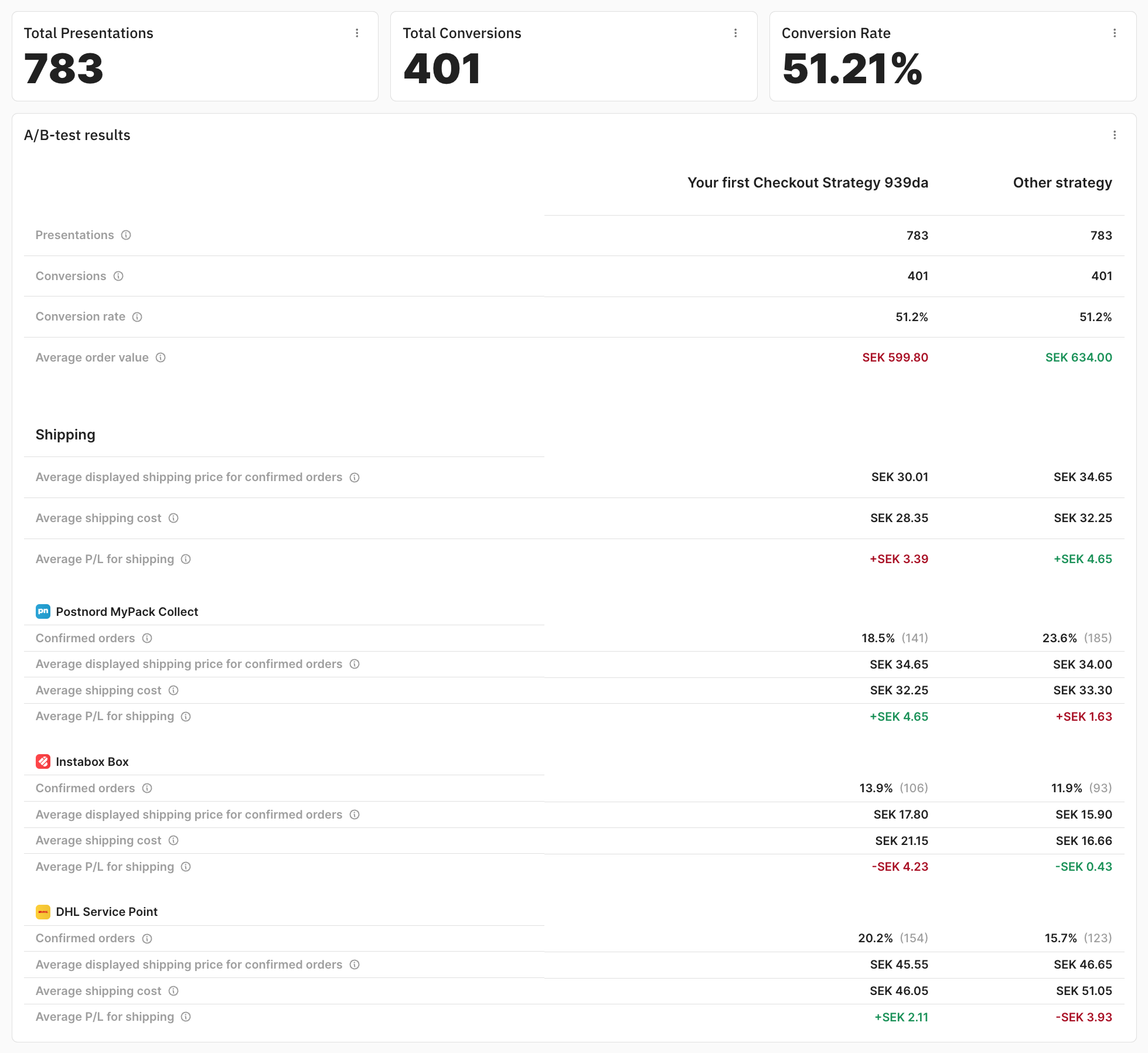
You can view statistics from your A/B tests by navigating to the individual A/B test page from the Strategies page on Scope. For the most accurate comparison, select only the tactics that were changed in the test. Use the always-visible Tactic selection section to choose tactics per strategy. Shift-click a tactic to select or deselect tactics with the same name across strategies. Clearing every tactic in a strategy leaves its comparison column empty.
The comparison table groups metrics into Overview and individual transport methods. Overview includes aggregate shipping price, cost, and profit/loss after revenue per presentation. Click a section heading to expand or collapse it with a short transition (disabled when reduced motion is preferred). Transport methods start expanded. Collapsing a section preserves tactic selections and comparison results. Tactics retain their configured icons and colors. Click a tactic to toggle its selection; deselected tactics are faded, grayscale, and crossed out. Significantly better or worse values have subtle green or red backgrounds.
For each A/B test, you can see the following statistics:
- Total number of presentations
- Total number of conversions and conversion rate
- Number of confirmed orders for each transport method
- Average displayed shipping price for confirmed orders
- Average shipping cost you incurred for confirmed orders
- Average profit and loss you incurred on shipping
Significance indicators
Conversion rates and transport-method order shares use a Pearson chi-square test. Average monetary metrics use Welch's t-test for two strategies and Welch's ANOVA for three or more. Pairwise comparisons use Bonferroni correction across the strategy pairs within each metric; this does not correct for inspecting multiple metrics or repeatedly checking a running test.
Constant prices are retained in comparisons. With at least two observations per strategy, different constant prices are treated as a detected difference, while identical constant prices are not. If three or more strategies include a constant group, the overall indicator uses the smallest Bonferroni-adjusted pairwise p-value because Welch's ANOVA weights are undefined for zero variance.
The indicators are Strong at p ≤ 0.01, Significant at p ≤ 0.05, Weak at p ≤ 0.10, and Not significant otherwise. Groups with insufficient observations are excluded from inference. A price difference does not itself demonstrate an improvement in conversion or profitability. Chi-square results are approximate and should be interpreted cautiously with small counts.
Prices and variances are calculated in the selected reporting currency. Applying the same fixed conversion factor to all observations does not change significance; exchange rates that vary between observations can change the measured variance.
If you have any questions or concerns, please feel free to reach out to info@skrym.se!
Recommended tactic filter
The results card compares the saved strategy snapshots and selects the recommended tactics by default before fetching statistics. You can adjust the selection manually; refreshes preserve those choices, including deselecting everything. If no recommendation is available or no material differences are found, all tactics are initially selected. The comparison matches tactics within their branches across every strategy pair and selects changed tactics and their counterparts, ignoring generated IDs, editor names, and node colors/icons. Added and removed tactics are included on the sides where they exist; they may lack a counterpart in other strategies. Renumbering priorities without changing relative order does not select otherwise unchanged tactics. Prices, currencies, method filters, sorting, overrides, and checkout configuration are included in the comparison.
If routing conditions or relative priorities change (including newly introduced ties), all tactics are recommended conservatively because fallback paths may also be affected. Adding or removing tactics does not by itself recommend every tactic. Default branches use their first tactic rather than numeric priority. Array ordering is preserved in the comparison. Missing or invalid snapshots disable recommendations; identical snapshots show that no differences were found. The recommendation is a configuration comparison, not a guarantee that the selected shopper populations are equivalent.
Use View strategy differences beside the tactic recommendation to open a dialog with a tree whose expandable nodes start collapsed: strategy comparison → branch → tactic → changed setting. Each strategy is compared with strategy A (the first saved test strategy, not necessarily the current production strategy). Values are labeled with the strategy letters; known method names and price currencies are shown. Branches and tactics use their saved node icons and colors, matching the tactic selector; removed nodes retain their original customization. Added and removed nodes are labeled explicitly, and unchanged settings and editor customization are hidden.
For duplicated strategies, the tree matches branches and tactics by surviving IDs, unique names, and identical settings, then uses position when equal numbers of unmatched nodes remain. Structural changes can make correspondence ambiguous; unmatched nodes are shown as additions or removals. The dialog does not change the selected tactics. Missing snapshots show an unavailable message for the affected comparison.
Method overrides are matched by preserved IDs, then unambiguous sets of transport methods or identical settings. Inserting or removing an override does not compare neighboring methods or report their shifted indices as edits. Actual relative reordering is shown as a position change; ambiguous matches are shown as additions/removals. The order of methods within an override’s target set is ignored.
Comparisons normalize known backend defaults before matching and displaying differences. For example, an omitted Only when this is the sole method is equivalent to false, omitted sort direction to false, and omitted delivery-time display to interval. Empty exclusion lists and nullable unset override values are normalized too. Meaningful values remain distinct: enabling the sole-method condition or changing an unset price override to zero still counts as a change. This normalization applies to both the recommendation and the difference dialog.
The difference dialog defaults to material changes only. It hides harmless priority renumbering and index shifts caused by additions/removals, as well as explicit defaults that preserve behavior. Enable Include non-material changes to inspect these stored-setting differences too. Generated IDs and editor styling remain excluded in both modes. The toggle does not affect tactic recommendations or selections and resets when the dialog closes.